Design a harbor lantern from a written brief, revise its finish from a reference, or set a lighthouse beam in motion. GPT Image 2.6 puts these decisions in one workspace. Choose a starting image below to inspect the prompt and settings behind the finished piece.
Example · The harbor lantern
Six briefs from the harbor
flare · 3:2 · PNG
The harbor lantern
Prompt and files
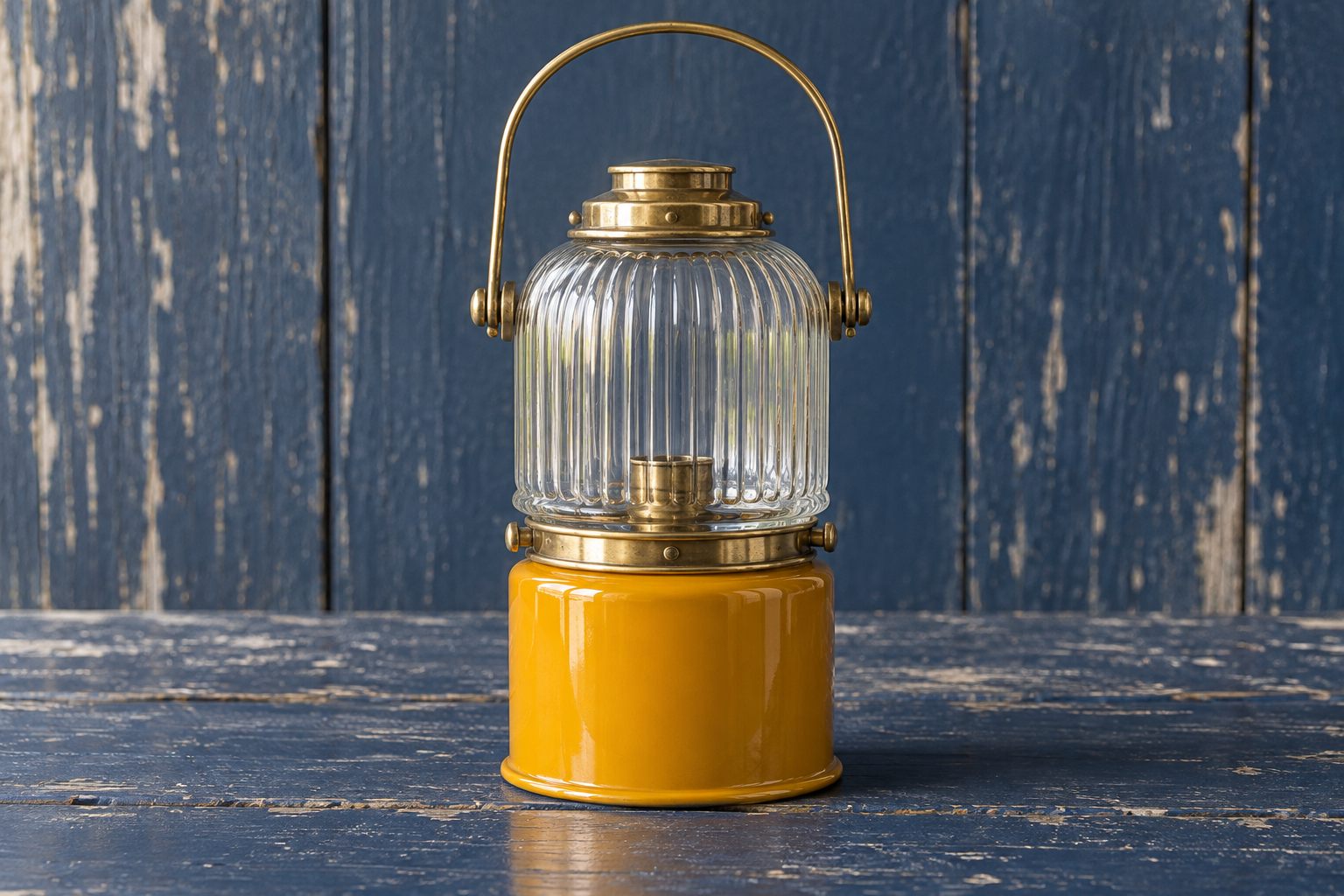
Art direct a quiet catalog photograph of one portable harbor lantern. A cylindrical saffron enamel base, a brass wire bail and a ribbed clear glass chimney sit on salt-worn navy timber. Eye-level three-quarter view; pale side light describes the glass ribs. Center the whole object with space around its handle. No flame, no lettering, no hands.
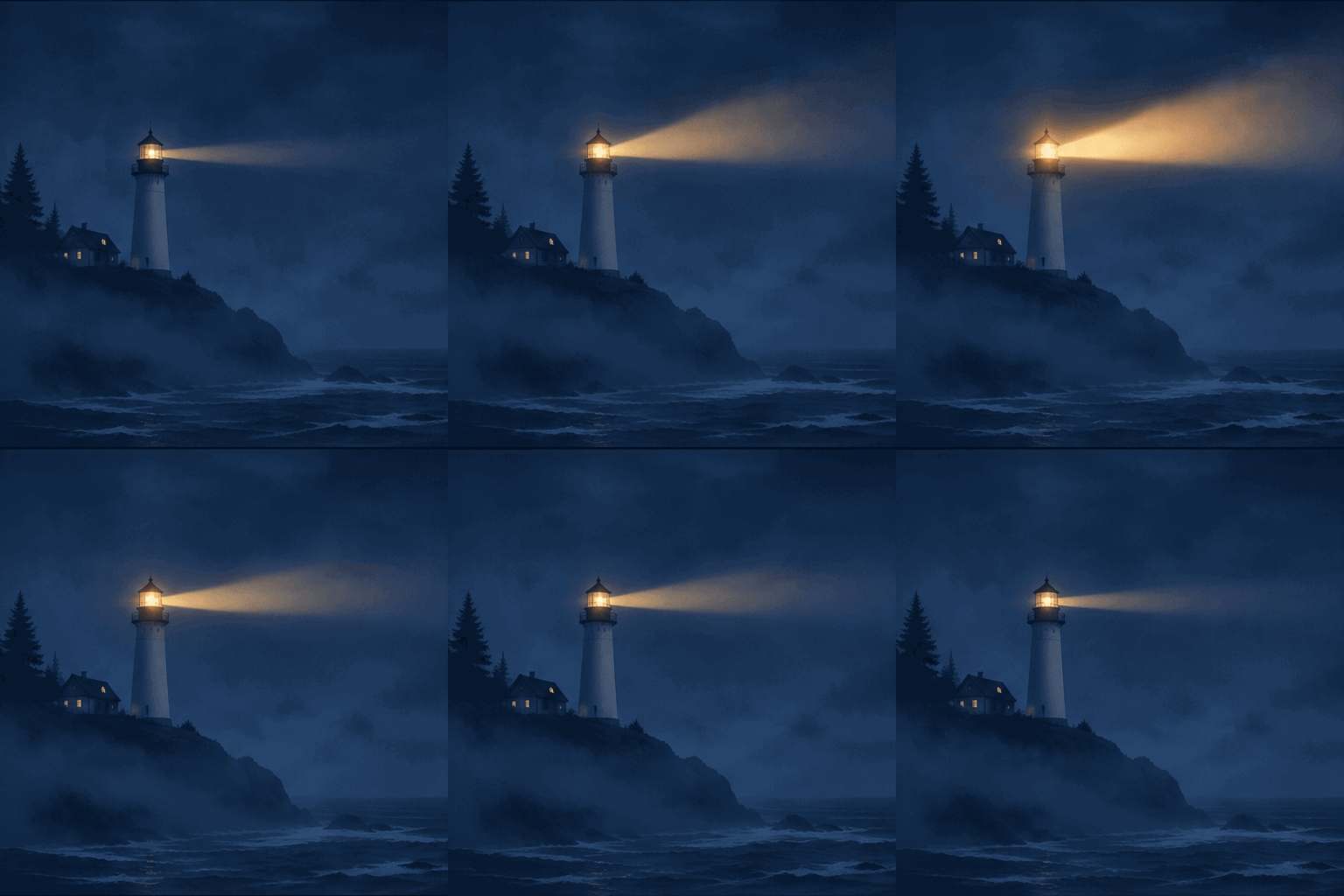
A seamless animated GIF of a lighthouse signal seen through dense midnight-blue sea fog. Locked camera, one cream tower on a dark headland, one horizontal beam of amber light rotates slowly, grows bright, then returns to its starting position. Flat screenprint shapes, restrained palette, steady horizon. No text, cuts, zoom or flashing strobe.
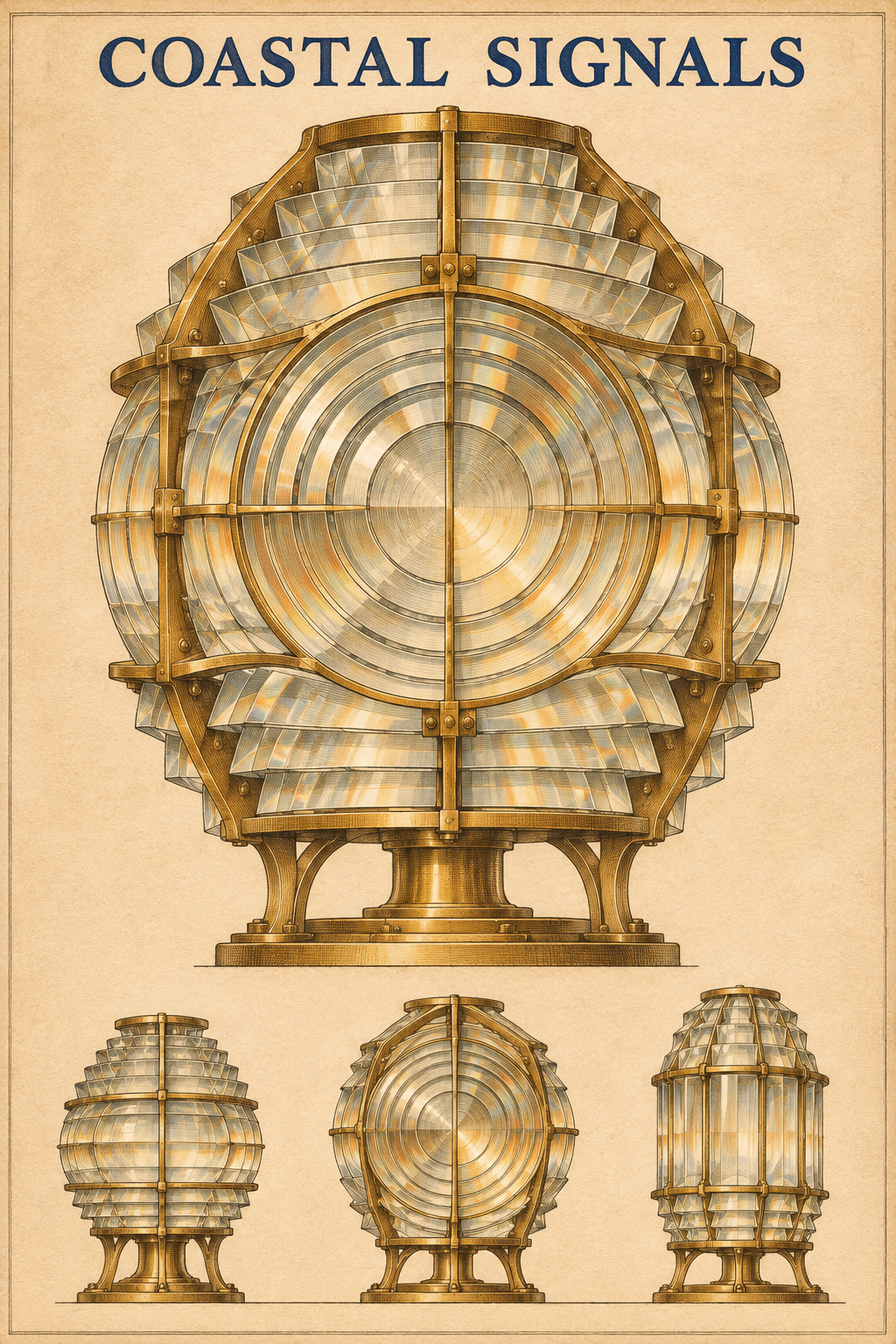
Design a portrait field atlas plate printed on warm uncoated paper. At top print exactly COASTAL SIGNALS in deep navy capitals. Center a large sectional illustration of a Fresnel lighthouse lens with concentric brass rings and translucent glass prisms. Below, arrange exactly three small side views of lens assemblies on one baseline. Fine engraved lines, restrained amber washes, balanced margins. No other words or numerals.
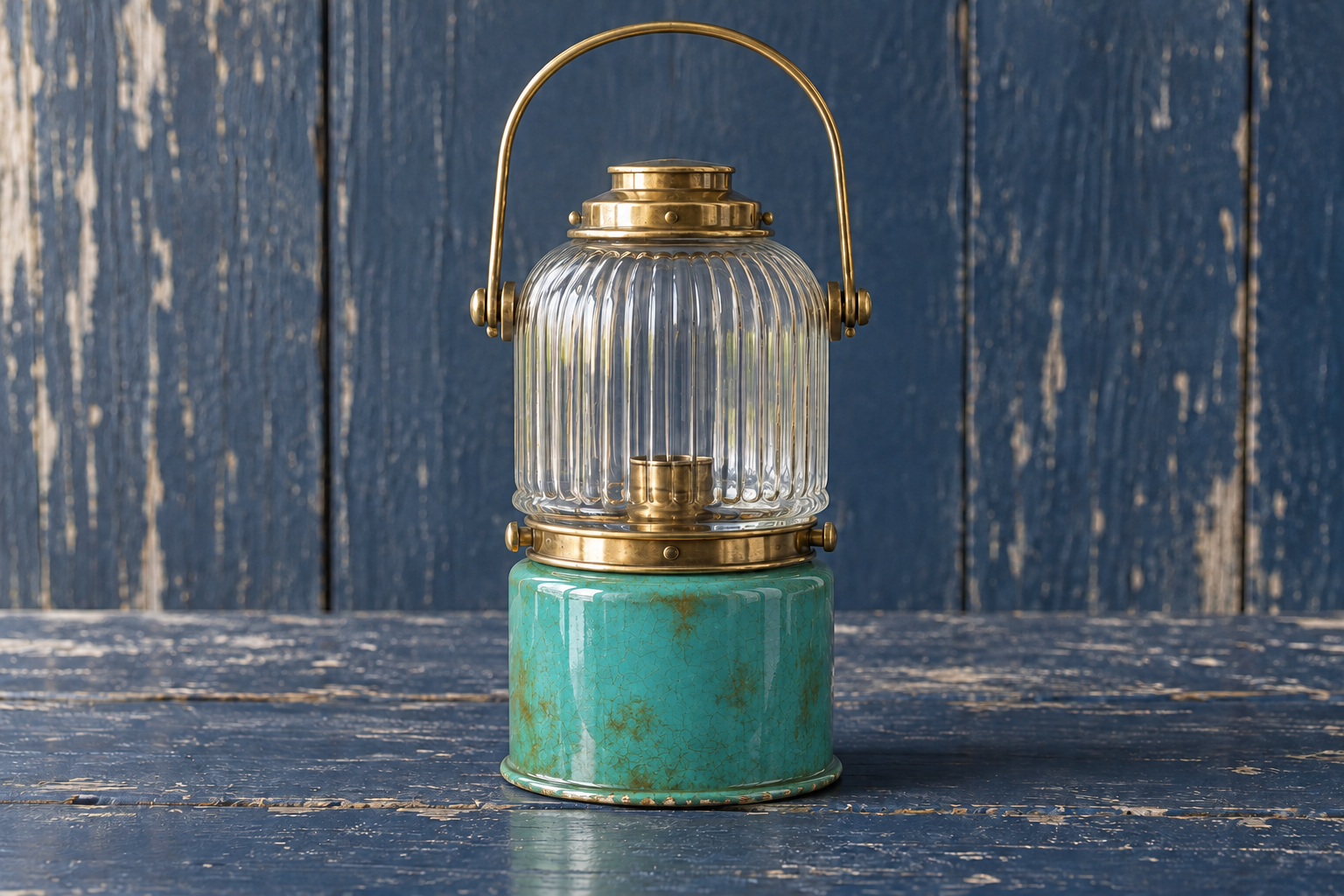
Replace only the saffron enamel on the cylindrical lantern base with weathered turquoise enamel. Keep the brass bail, glass ribs, unlit chimney, timber, camera and crop. Retain the exact position of the object and the pale sidelight. Render minute chips at the bottom rim. No text or props.
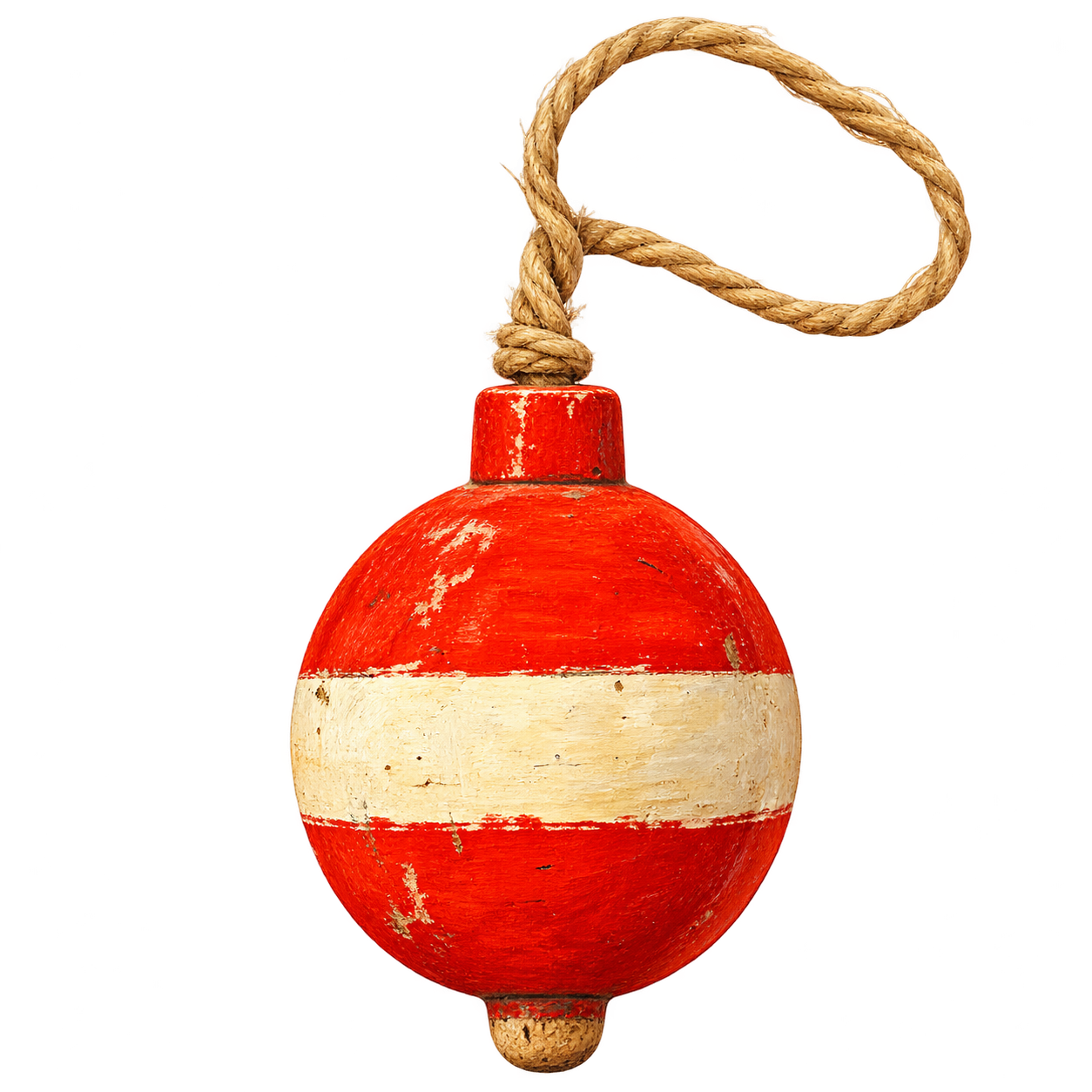
One vintage cork fishing float painted vermilion and ivory, its hemp cord curving into one loose loop above it. Isolated object for a maritime museum sticker. Hand-painted gouache texture and a clean readable silhouette, front view, no shadow plane, no border, no lettering. Transparent background.
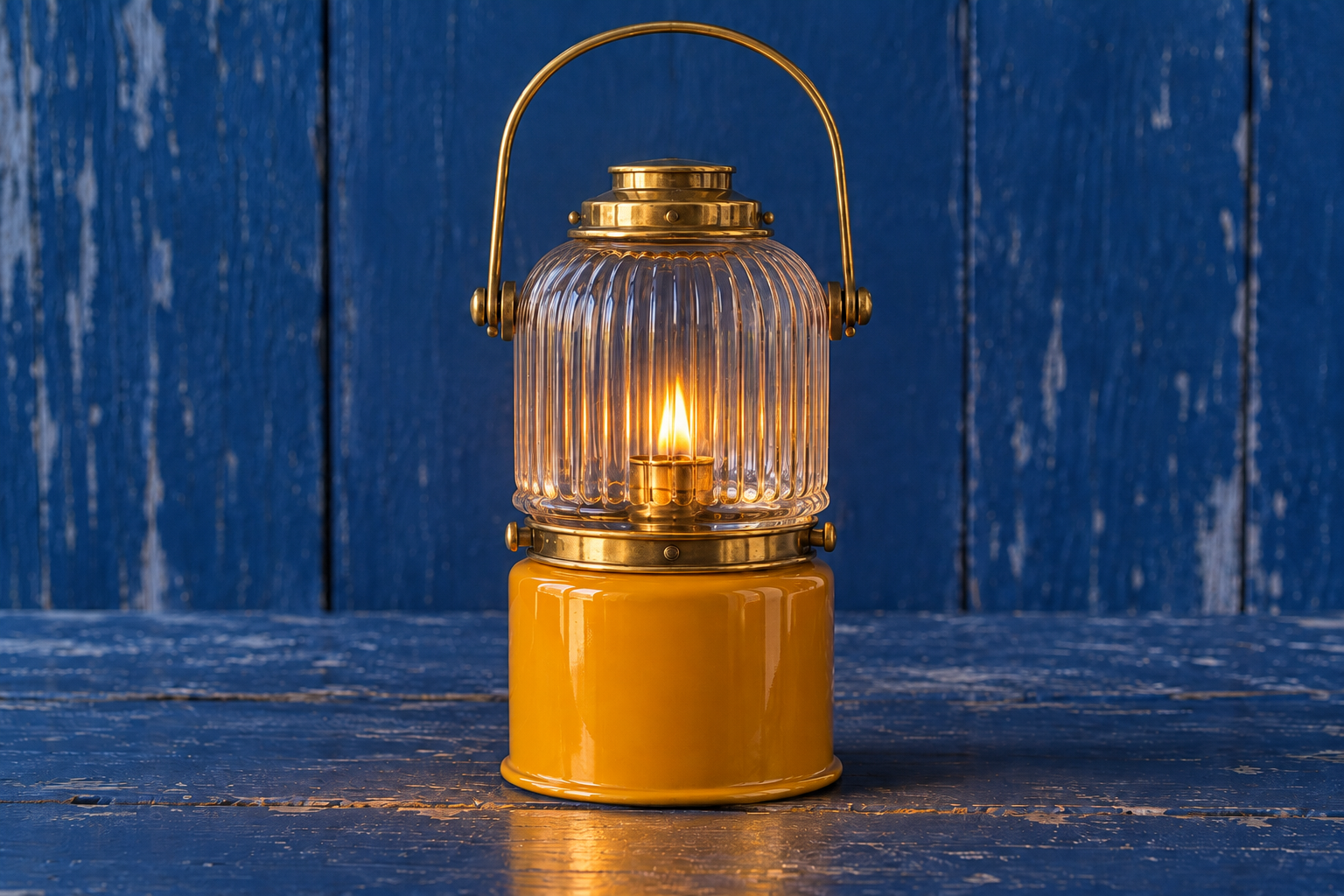
Relight this exact lantern photograph at blue hour. Light a small warm flame inside the glass chimney. Preserve its original saffron base, handle shape, camera angle, timber grain and framing. Add one small warm pool of reflected light, no additional objects.
OpenAI positions GPT Image 2.6 Flare for rapid iteration. Try it when the shape of a proposal is still open. A lantern might need a wider base, a taller chimney or more space above the handle. Make that choice at thumbnail size before spending time inspecting scratches in the enamel. GPT Image 2.6 Sunburst suits layouts and edits where small relationships matter. On the coastal atlas, the line between two pieces of glass carries meaning. Inspect that line at the size a reader will see. Economy is a separate option in the provider menu with a smaller set of controls. A team can assign each review to the person who owns that decision. The photographer checks glass and shadows, while the designer checks the title and margins. OpenAI prompting guide ↗
Plan a field plate with GPT Image 2.6
Think about a field plate pinned to a museum wall. Its reader needs a title, a large illustration and a few smaller views in a clear order. Write those relationships into the GPT Image 2.6 brief. Put the lens in the center, the title above it and the three studies below it on one baseline. On Flare and Sunburst, complexity controls planning. Quality controls rendered detail. Increasing quality on a crowded GPT Image 2.6 layout can sharpen the lettering while leaving too little room to read it. Settle the arrangement first, then judge strokes, texture and small type.
Direct a local GPT Image 2.6 edit
A buyer looking at two colorways needs to recognize the same lantern in both photographs. Load the turquoise finish brief and inspect its source. The GPT Image 2.6 instruction names the painted base as the area to change. It also names the wire handle, ribbed chimney, camera angle and timber as details to preserve. Compare the two rims side by side before accepting the edit. When an adjacent highlight changes, decide whether that reflection belongs to the new finish. For a smaller correction, Flare and Sunburst accept a mask URL alongside the reference in this GPT Image 2.6 workspace.
Build a GPT Image 2.6 signal loop
Our harbor signal begins with a tower and gives the beam one job. That makes the join between the last and first frames easy to inspect. In the GPT Image 2.6 animation brief, name the moving element, its path and the objects that stay still. Request a GIF, choose a frame count and set the duration of each frame. The player here presents a video copy of the generated GIF for convenient replay. Open the original to inspect the asset. GPT Image 2.6 creates the visual sequence. Timing and framing determine whether it reads as a signal or a flash. Watch the loop twice. On the second pass, cover the beam with your hand and look for unintended movement in the building or the horizon.
Prepare artwork for delivery
A catalog image a buyer can compare
For a GPT Image 2.6 product study, brief the camera before the light. A low viewpoint can hide the lantern opening. A steep one can flatten the handle against the timber. Leave space around the entire object and use one identifiable light source. Save the approved GPT Image 2.6 photograph as your reference for subsequent finishes. In a contact sheet, align the bases and inspect the thumbnails together. If one appears larger, check the crop before attributing the difference to the design.
An illustration ready for layout
The coastal atlas gives GPT Image 2.6 a short title and a restricted palette. Read each letter independently, count the small studies and check the white space between them. For artwork that will sit on several backgrounds, inspect the fishing float example. A transparent GPT Image 2.6 PNG can be placed over another color without cutting around the rope by hand. Zoom in on the loose loop and test a dark surface as well as a pale one. A faint fringe often becomes visible only after placement.
Run a brief in the studio
Step 1
Load a GPT Image 2.6 brief
Open a GPT Image 2.6 example and read its complete prompt. Load the brief to restore the model, mode, aspect ratio and output choices. An editing example also supplies the source photograph. Replace one instruction at a time so that the next render answers a question you can review.
Step 2
Prepare a GPT Image 2.6 reference
Choose a public HTTPS image address for a GPT Image 2.6 edit. Open it in a signed-out browser to check access. Use a source large enough to distinguish the feature being changed. State the desired revision first and identify the surrounding details that should remain recognizable. Describe any reflections or shadows that need to change with the material.
Step 3
Review the GPT Image 2.6 output
Select Generate and wait for the finished GPT Image 2.6 file. Open it at delivery size, compare it with the brief and save the accepted result. Keep its source and settings alongside it so a colleague can request a revision later.
GPT Image 2.6 FAQ
When should I select Flare or Sunburst?
Choose GPT Image 2.6 Flare for quick visual decisions. Try Sunburst for a demanding edit or detailed composition. Use the same reference and crop for both when comparing how they interpret an instruction.
What does GPT Image 2.6 Economy support?
The Economy option for GPT Image 2.6 accepts a text brief or an image edit. Its text endpoint offers PNG and animated GIF output. Its image editing endpoint returns PNG. The available controls change with the selected operation.
Can I isolate an object for another background?
Choose PNG and a transparent background. For GPT Image 2.6 Flare or Sunburst, use the 1K setting to enable background selection. Inspect openings inside the object as carefully as the outside edge.
How should I request lettering in GPT Image 2.6?
Give GPT Image 2.6 the exact words, their position and their intended size. Keep secondary text brief. Read the finished artwork closely before using it for print, especially when a product name contains unfamiliar spelling.
Does a GIF become a video automatically?
The GPT Image 2.6 generator returns the selected format. The lighthouse example includes a encoded video preview. Download the original GIF when your publishing system expects an animated image.
Can GPT Image 2.6 produce vector artwork?
Flare and Sunburst list SVG among the GPT Image 2.6 output choices. Select that format for a vector brief, describe the shapes clearly and inspect the returned file in a vector editor before preparing production artwork.
Why might a GPT Image 2.6 edit fail?
Check that the GPT Image 2.6 reference URL points to an accessible image. Replace expired links, verify the selected mode and remove an outdated mask if the source composition has changed.
Can I reuse a result for another brief?
Save the GPT Image 2.6 output and make it available through a reference URL. Choose Reference edit, describe the next change and compare the returned version with the last approved image.