Generate a product shot, direct an edit with a marked reference, or split an illustration into editable layers. BytePlus positions Seedream 5.0 Flash for image work where turnaround time and cost matter.
Example output · Vermilion enamel study
Start with a working brief
Text to image · 1:1 · 1K · JPEG
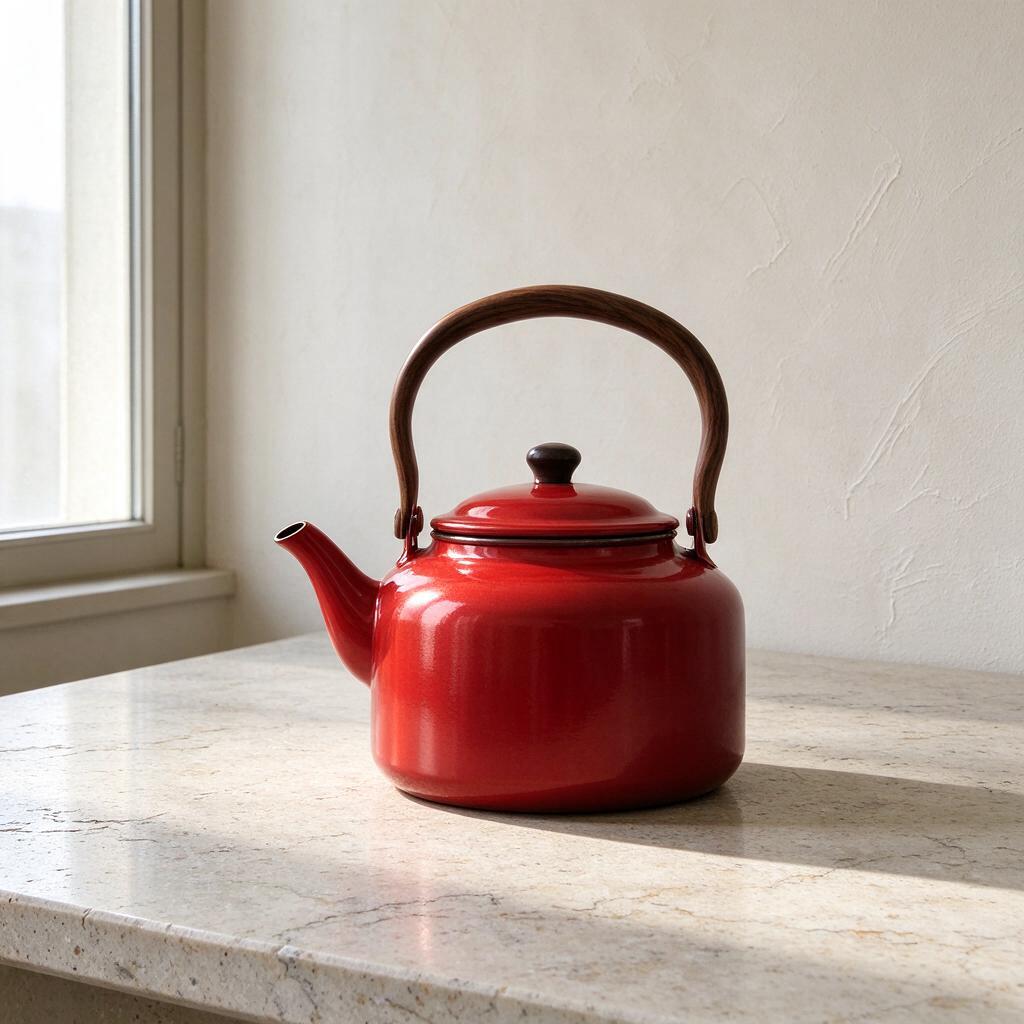
Vermilion enamel study
Read the prompt
Photograph a single satin vermilion enamel kettle on pale limestone. Low three-quarter camera, square catalog composition, spout pointing left, walnut handle silhouetted against warm white plaster. One tall north window at camera left creates a long soft-edged shadow to the right. Leave clear air between handle and lid. No lettering, steam, props or graphics.
Reference edit · 1:1 · 1K · JPEG
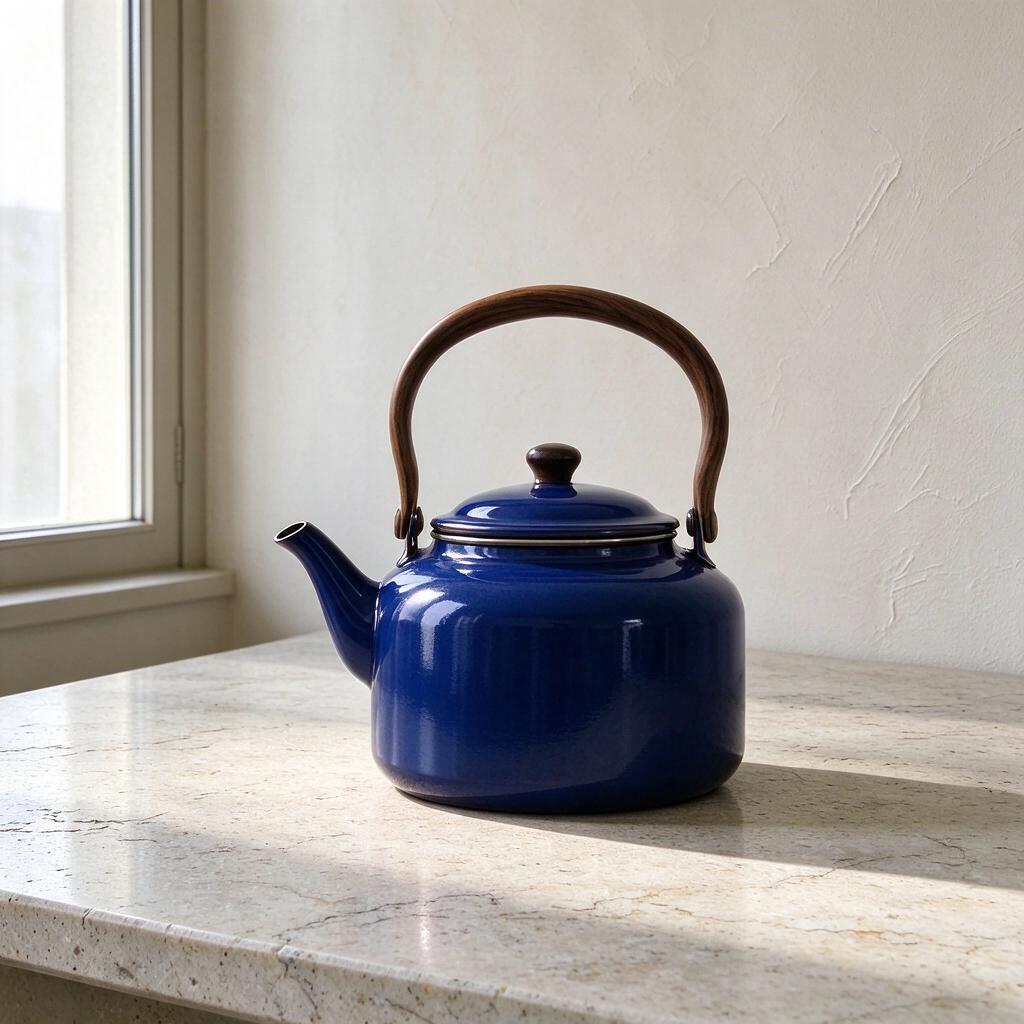
Ultramarine finish
Read the prompt
Change only the vermilion enamel body to deep ultramarine blue. Preserve the walnut handle, silhouette, camera position, limestone pores, window reflection and direction of the contact shadow. Keep the metal rim silver. Do not introduce another object or lettering.
Split layers · auto · PNG
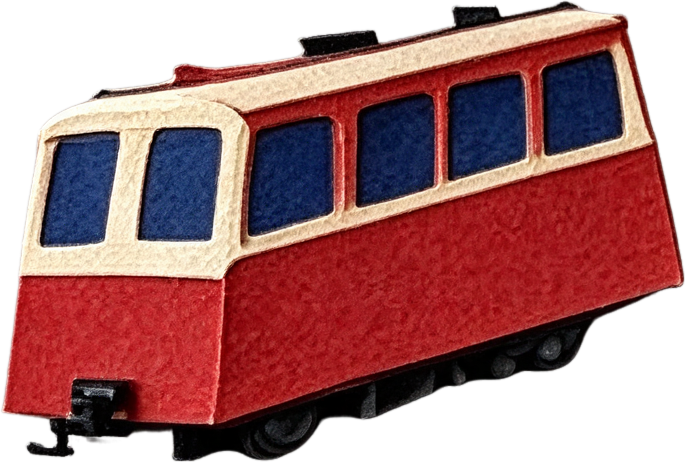
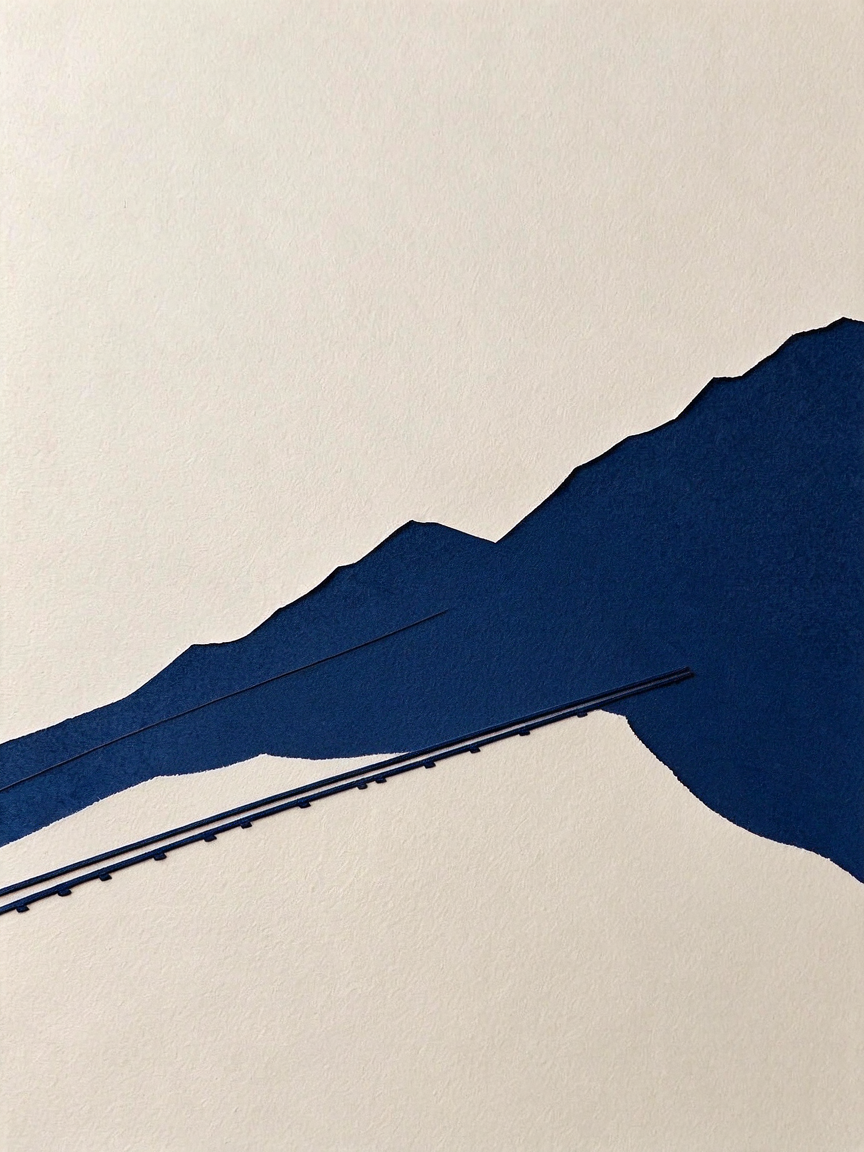
Alpine railway cutout
Read the prompt
Separate the red railway carriage, ivory foreground ridge and blue mountain backdrop into distinct image layers. Preserve their original positions and edges.
Text to image · 3:4 · 1K · JPEG
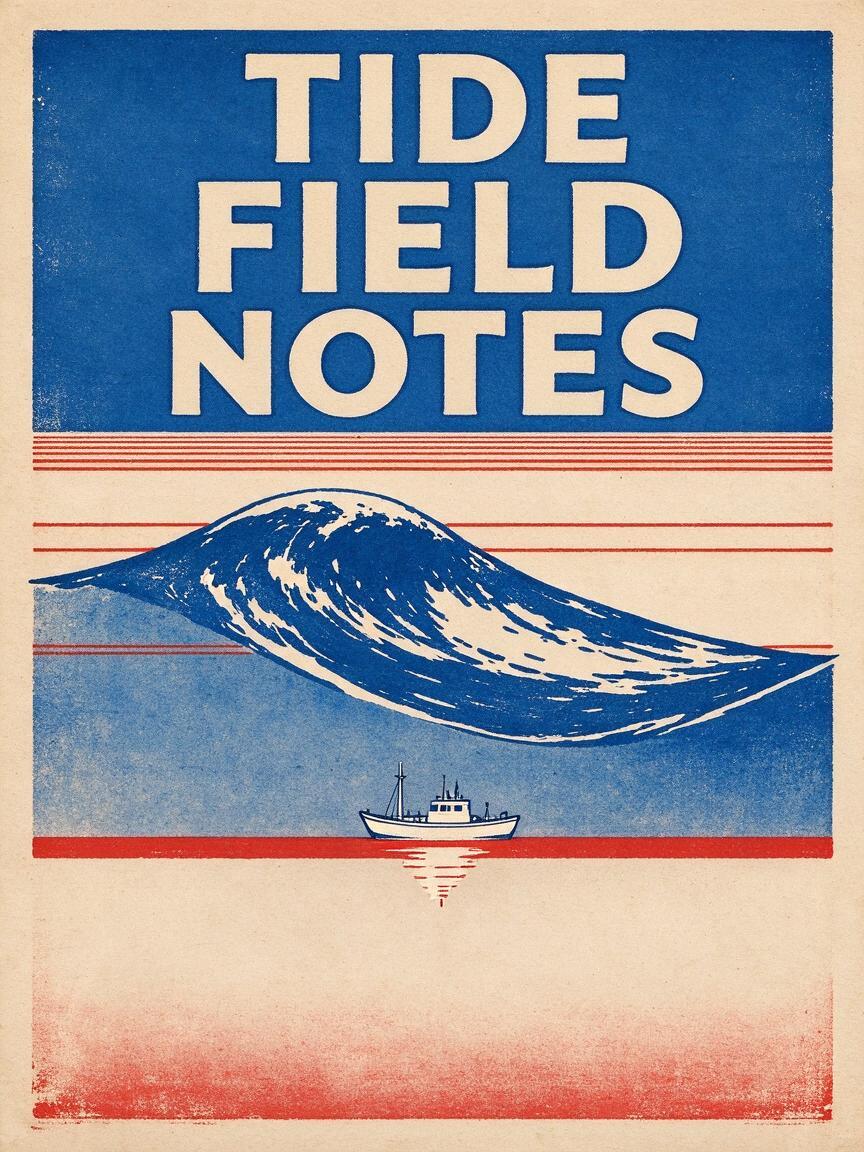
Tide field notes
Read the prompt
Design a finished vertical screen-printed field poster for an imaginary coastal observatory. The only lettering is the exact three words TIDE FIELD NOTES, stacked in the top quarter in large cream condensed capitals. Below, a single ultramarine wave cross-section cuts across five thin vermilion depth lines. Place a tiny white survey boat directly above its own echo on the deepest line. Warm uncoated paper shows through the highlights; two ink colors only. Flat frontal artwork, generous margins, no mockup, no invented numbers, no ornamental text.
Text to image · 4:3 · 1K · JPEG
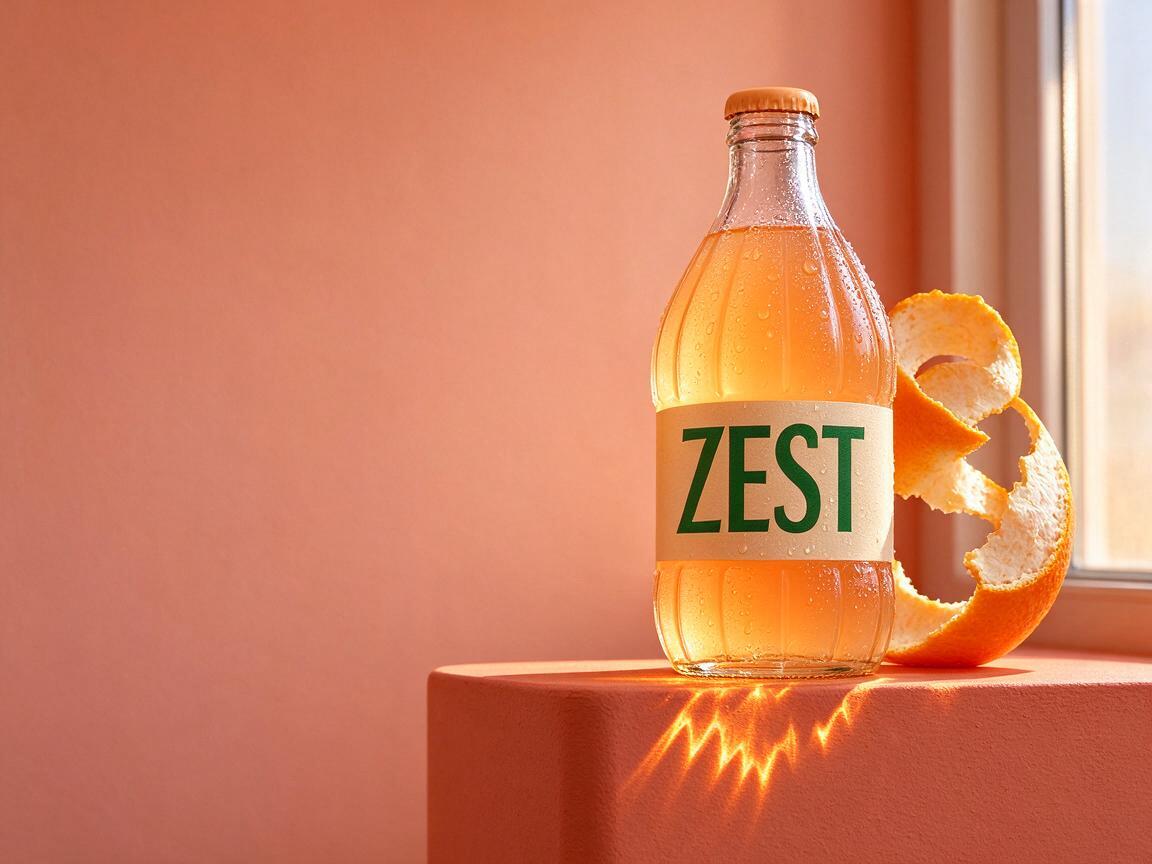
Mandarin soda in window light
Read the prompt
Photograph one squat clear fluted soda bottle filled with pale mandarin soda on a matte coral plinth, cap attached. A narrow ivory label reads exactly ZEST in one dark green word. Arrange one peeled citrus spiral behind the bottle; leave the entire left third empty for campaign copy. Late afternoon light through a tall window on the right projects a serrated amber caustic onto the plinth. Preserve separation between label paper, cold glass and condensation beads. Eye-level 85 mm studio photograph, no hands, no extra bottle, no other typography.
Text to image · 16:9 · 1K · JPEG
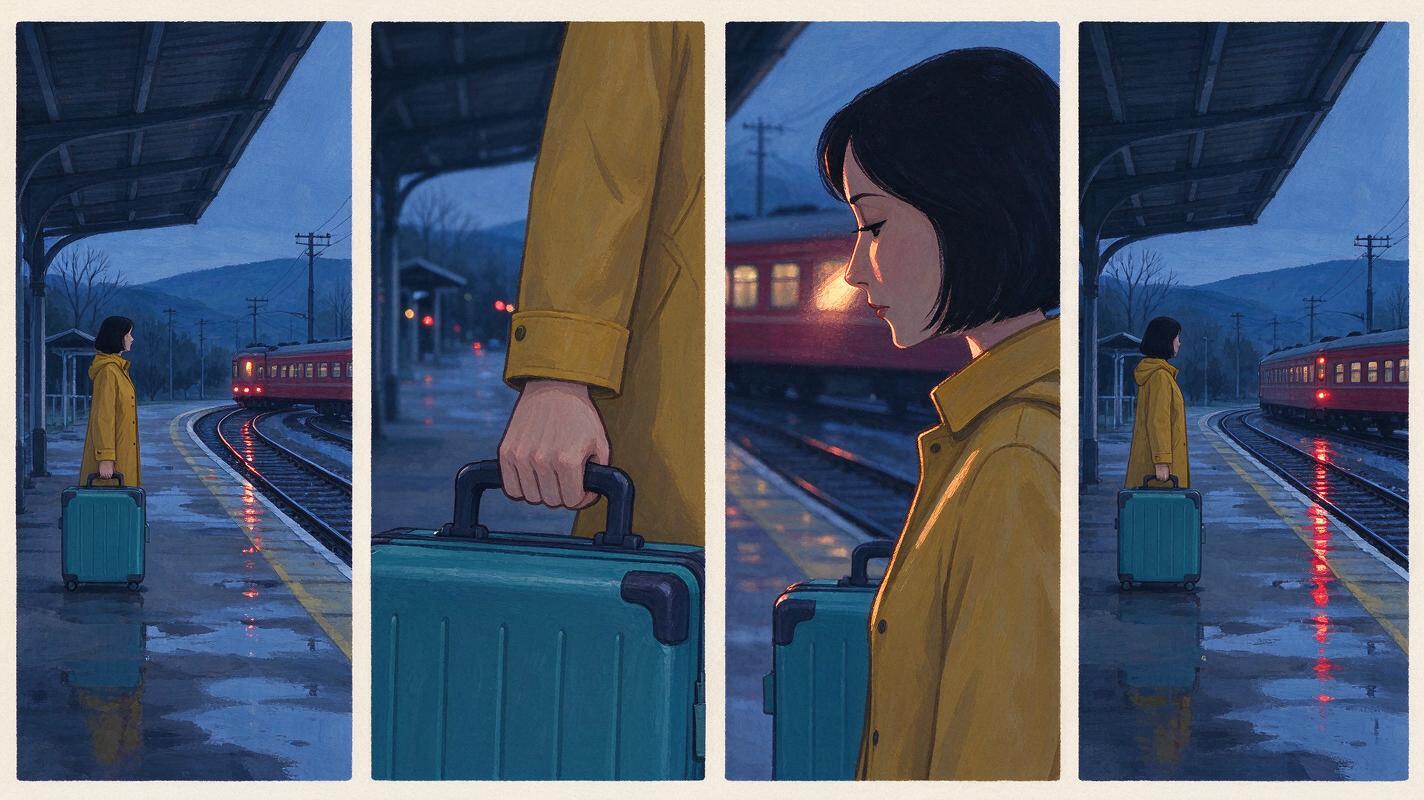
Last train storyboard
Read the prompt
Create one horizontal storyboard sheet with four equal panels and thin ivory gutters. A woman with a cropped black bob, mustard raincoat and square teal suitcase waits at a rural station after rain. In panel one a wide shot establishes the empty platform and distant red train. In panel two frame her hand tightening on the suitcase. In panel three show the carriage light brushing her face in profile. In panel four the train departs and a single reflection remains. Keep wardrobe, screen direction and blue-hour palette continuous. Gouache production art, no captions, no speech balloons.
What sets Seedream 5.0 Flash apart?
Separate the carriage from the mountain
Seedream 5.0 Flash can split one image into a base and up to sixteen independent layers. Pro shares this capability. BytePlus lists layer decomposition as unavailable on 5.0 Lite, 4.5 and 4.0. Our railway example returned four files. Open each one to inspect the separation. The carriage layer is particularly useful for testing motion because the wheels touch the diagonal track. Place it over the base and move it a few pixels uphill. Check the space it leaves behind for repeated details before approving the shot. In Seedream 5.0 Flash, the layer count depends on the picture and instructions.
Seedream 5.0 Flash accepts visual instructions on a reference. Draw an arrow toward the kettle body or outline the area to repaint, then describe the new finish. The blue kettle here used a written instruction and the red photograph as its reference. Compare the metal rim, wooden handle and contact shadow at the same scale. BytePlus lists region-marked editing for Seedream 5.0 Flash and Pro. Its comparison table marks this feature unavailable for 5.0 Lite, 4.5 and 4.0.
BytePlus documents native multilingual generation for Seedream 5.0 Flash and Pro. For a localized poster, supply the exact destination name in its original script and describe where it should sit. Ask a reader of that language to check every character at delivery size. Our railway illustration deliberately leaves its sky empty for editable type. A timetable that changes each week is easier to maintain in a layout file. Keep the original Seedream 5.0 Flash artwork beneath the lettering so each edition uses the same mountain silhouette.
A useful Seedream 5.0 Flash review compares alternatives that answer the same question. For a buyer choosing an enamel finish, changing the countertop as well as the kettle introduces a second decision. Keep the camera and crop fixed. For a poster designer comparing silhouettes, remove texture from the first brief and judge the shapes at thumbnail size. Bring texture back into Seedream 5.0 Flash only after the composition reads across the room. A small Seedream 5.0 Flash contact sheet can settle the choice: put both finishes on one neutral background, hide their filenames and ask which one reads as enamel from across the table.
Seedream 5.0 Flash: compose for the final placement
A square Seedream 5.0 Flash product image works for a catalog tile, but a wide banner needs space beside the subject for its headline. Specify which side stays quiet. A portrait poster needs room above the ridge and below the carriage for a printer to trim. Choose the intended ratio in Seedream 5.0 Flash before rendering. Stretching a square picture afterward turns circular lids into ovals and alters the apparent pitch of a mountain railway. Fold it to the intended trim line and check that neither the wheels nor the cable meet the edge.
From image brief to delivery
A catalog photograph in a single light
A kettle makes a demanding test for Seedream 5.0 Flash. Its spout has to meet the body cleanly, the lid needs a convincing rim, and the handle should leave enough space for a hand. Give Seedream 5.0 Flash one window instead of a list of studio lights. On the enamel, look for a reflection that describes the curve. Under the base, look for a shadow that makes the weight believable.
Seedream 5.0 Flash: choose the right starting point
Use Seedream 5.0 Flash text generation when no existing object must survive the process. For a real object with distinctive proportions, start with a photograph you have permission to use. Seedream 5.0 Flash image editing takes reference images together with a written instruction. Describe the change first, followed by the features that must stay. If the artwork is already approved and only its arrangement needs adjusting, try decomposition before paying to redraw the whole scene.
Where does the finished image go?
Use a selected Seedream 5.0 Flash photograph as the opening frame for a product clip, or place a separated carriage above a new background in your design application. For motion, decide what moves and what stays still before opening the video tool. A slow push toward a kettle reads differently from a turntable shot. Save the approved Seedream 5.0 Flash still separately so returning to the original composition takes one file rather than another generation.
Seedream 5.0 Flash: run a brief from start to finish
Choose the matching Seedream 5.0 Flash mode above. Enter the prompt and select a supported aspect ratio for generation or editing. Paste a public HTTPS reference URL for an edit; provide a single source image for decomposition. Select Generate and watch the result area beside the editor. A submitted Seedream 5.0 Flash task is not a finished picture. Wait for success, open the returned files and save the accepted results with their prompts and settings.
Step 1
Choose a mode
Start from a written brief, a reference image or a finished composition.
Step 2
Set the output
Select size and format. For generation or editing, choose the crop as well.
Step 3
Inspect the files
Open each result and save the version you want to use.
Seedream 5.0 Flash FAQ
How do I reuse a sample brief?
Choose Load this brief under any example. The Seedream 5.0 Flash editor restores its prompt, mode, references and output settings. Review them before selecting Generate.
How many reference images can I use?
Reference edit accepts up to ten public HTTPS image URLs. Paste one per line. For Split layers, supply one finished composition.
Which Seedream 5.0 Flash resolution should I choose?
Seedream 5.0 Flash offers 1K, 1.5K and 2K sizes for text generation and reference edits. Start with the smallest size that lets you assess the decision in front of you. A color comparison rarely needs the same inspection as a thin cable against snow. Before approving a larger Seedream 5.0 Flash render, view it at delivery size.
Should I choose JPEG or PNG?
Use JPEG for a compact Seedream 5.0 Flash catalog photograph. Select PNG for crisp graphics. For decomposition, the format selector applies to the base image. Individual layers are PNG files with transparency.
Which files will Split layers return?
Seedream 5.0 Flash returns a base image and separate layers. Open each result individually. Our railway brief produced four files, including the red carriage on transparency.
Can Seedream 5.0 Flash repeat a result?
Keep the Seedream 5.0 Flash prompt, reference, crop, size and output format together. These details make a brief repeatable without promising identical pixels. Record which version the reviewer accepted. If shape matters, use that approved image as the next reference rather than describing it from memory. A Seedream 5.0 Flash comparison is easiest to evaluate when both versions stay visible at the same scale.
How do I revise a Seedream 5.0 Flash detail?
Identify the error. Ask Seedream 5.0 Flash to restore the silver rim rather than requesting a better kettle. If a layer includes a strip of mountain, name the unwanted region and the object it touches.
Why did my reference edit fail?
Check the link in a signed-out browser. Seedream 5.0 Flash needs a reachable image. Replace expired links and links that open a sign-in screen before trying again.

 Text to image · 1:1 · 1K · JPEG